Creating a menu
OpenGamepadUI is composed of many different menus, all of which are contained in their own scene. Menus are the glue between the various built-in and custom UI components and the backend systems that we want to control.
This page is a guide on how most menus are created in OpenGamepadUI and how they work with other menus.
How menu switching works
In OpenGamepadUI, nearly all menus get loaded and added to the scene
tree on startup. Menus are "switched to" by toggling visibility of the
menu in the scene tree. The visibility of menus is coordinated using a
StateMachine which
keeps track of the current menu state.
You can see in this example scene tree that there is an instance of every menu defined in the scene, but their visibility is toggled off:
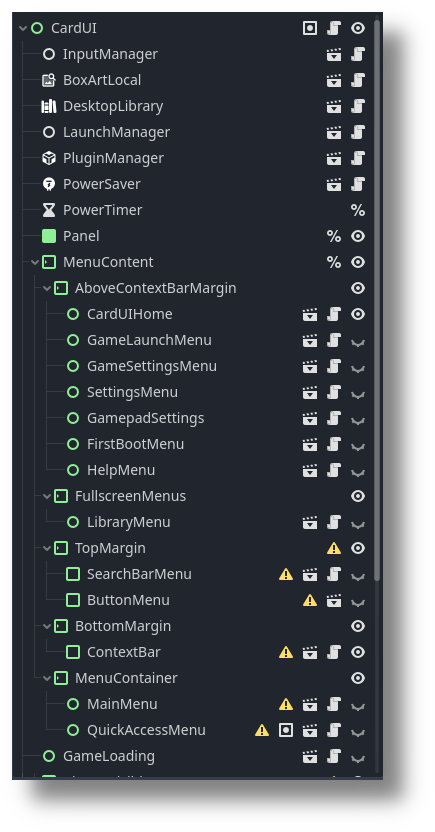
Each menu toggles their visibility on or off by listening for the
state_entered or state_exited signals fired by its
State. This is normally
done using a
VisibilityManager or StateWatcher node that is added to the menu. These nodes allow you to
configure a State to listen
for state change signals to play an animation or show your menu.
How menu focus works
Godot has built-in support for focus of menu items. By default, focus
will flow to the next nearest visible focusable UI element. The
FocusSetter node can
be used to set the current focus in response to a signal.
For more complex focus flows, each element can configure its
focus_neighbors to define focusable nodes above, below, left, and
right of the current node.
In some cases, configuring the focus neighbors for each node in a menu
can be quite laborious. To aid with this, there is also a
FocusGroup node that
can be added to any
Container
node to automatically configure the focus neighbors.
FocusGroup nodes also
have focus neighbors to allow you to jump focus between groups of
focusable nodes.